Portfolio Analysis
Portfolio analysis is a feature that gives you the ability to analyze several properties at the same time. Also, you can also adjust Market Assumptions and create different Sensitivities and to simulate different scenarios for your portfolio.
Getting Started
To access the Portfolio Analysis feature, you will need to open an existing portfolio. Here are some articles to help you get started:
Add Properties to an existing Portfolio
How it works
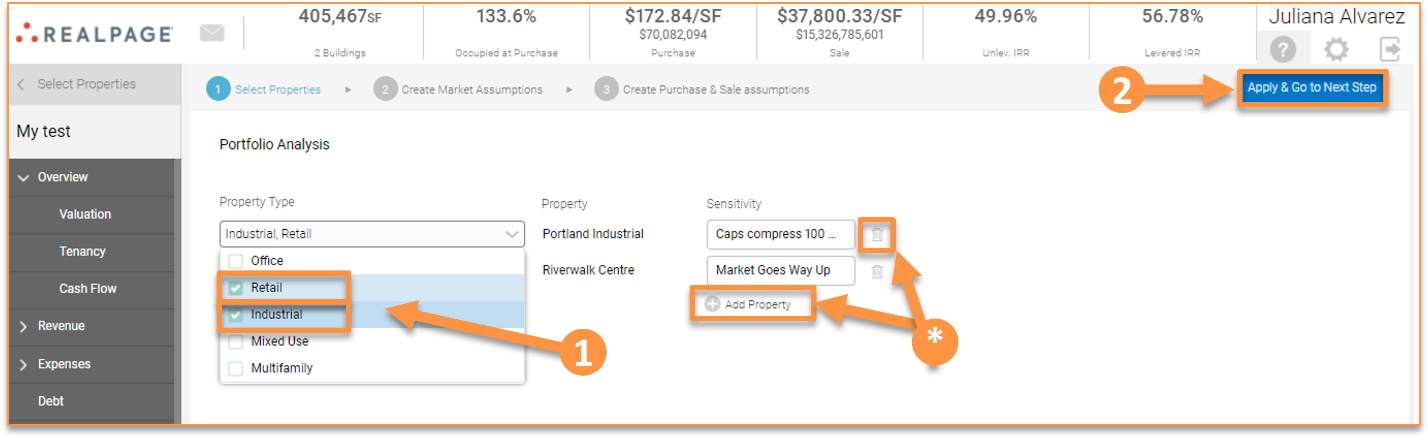
First, select the property type you want to include in your analysis. This feature allows you to filter by property type (Office, Retail, Industrial, Mixed Use and Multifamily).
You can delete and add properties by clicking the Delete icon or the “Add Property” button. Once the properties you want to analyze are selected, click “Apply & Go to next Step.”
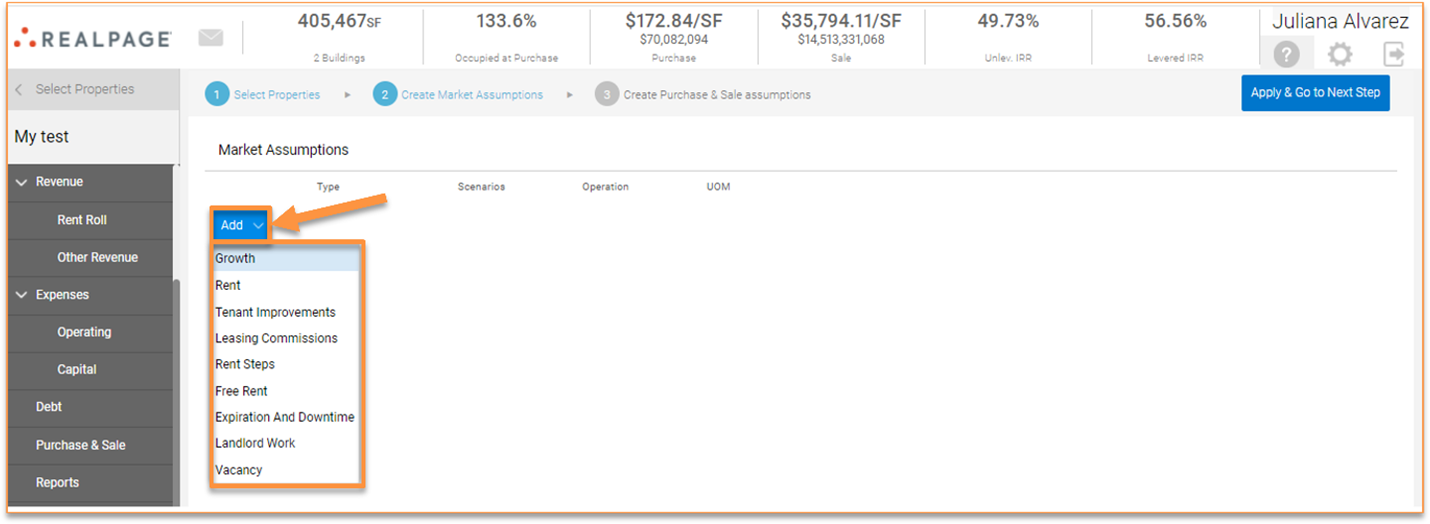
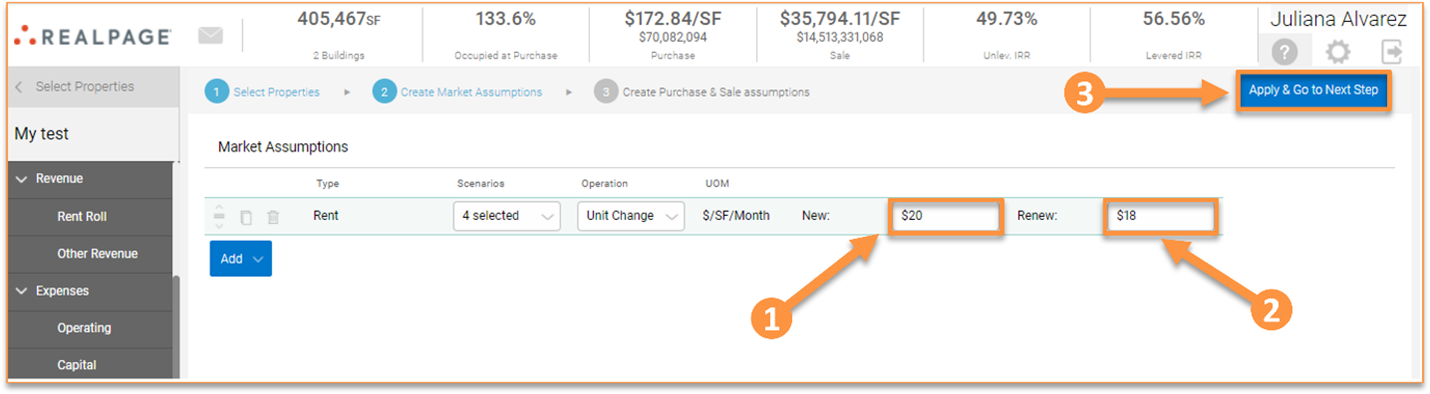
In the second step, select the Market Assumptions that you want to adjust. Click the “Add” button to modify the current Market Assumptions being used at the property level. The assumptions you can adjust in this section are:
- Growth
- Rent
- Tenant Improvements
- Leasing Commissions
- Rent Steps
- Free Rent
- Expiration & Downtime
- Landlord Work
- Vacancy
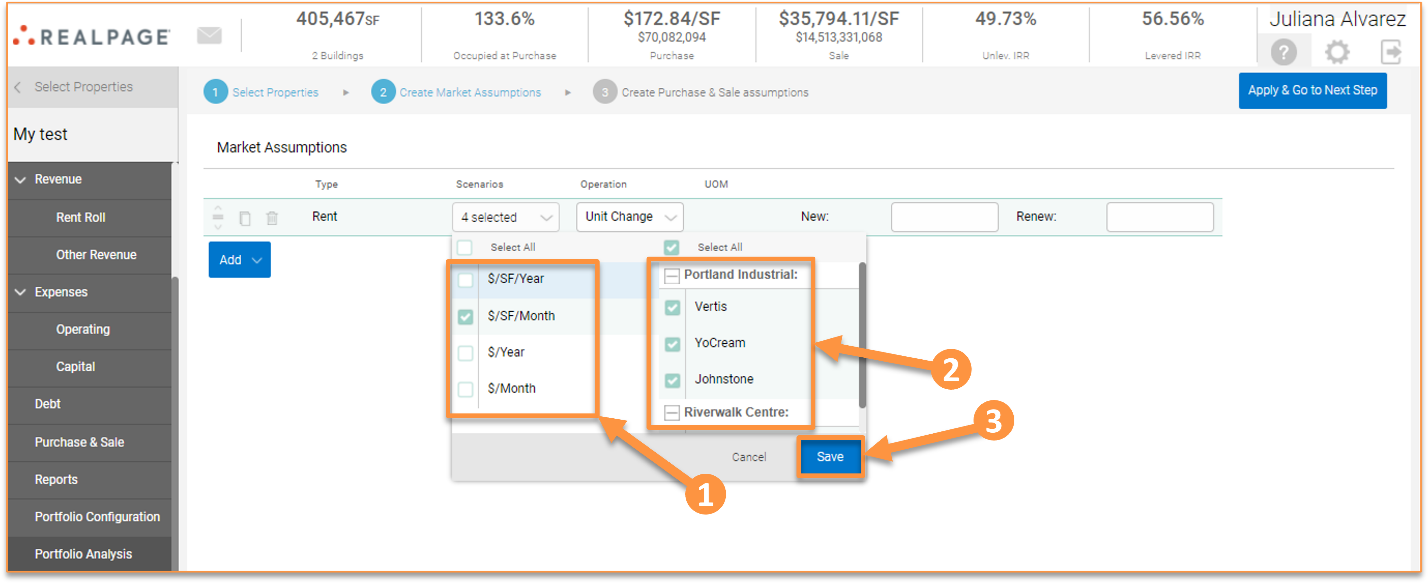
When selecting a type, for example Rent, click “Scenarios”, and observe the drop-down menu. On the left, you can select the UOM (Unit of Measure) used for the Rent scenarios that you want to modify. On the right, you can select specific leases for each property based on the UOM selected. Once you select the UOM and the leases to be modified, click “Save.”
The “Scenarios” dropdown field lists all the scenarios for the scenario type that was selected. For example, if there are five Rent scenarios for the properties selected, then all five are going to be listed in the “Scenarios” dropdown field. Use the tick boxes to select specific Rent scenarios being used for each lease. All scenarios are organized by property in this view, and you can expand/collapse the scenario list that displays under each property.
The column “UOM” will show the Unit of Measure being used based on your selections. When multiple scenarios are selected, the “UOM” column will show the word “Varies.”
The “Operation” dropdown field allows you to select between “Unit change”, “Percentage (%) Change”, and “Replace With.”
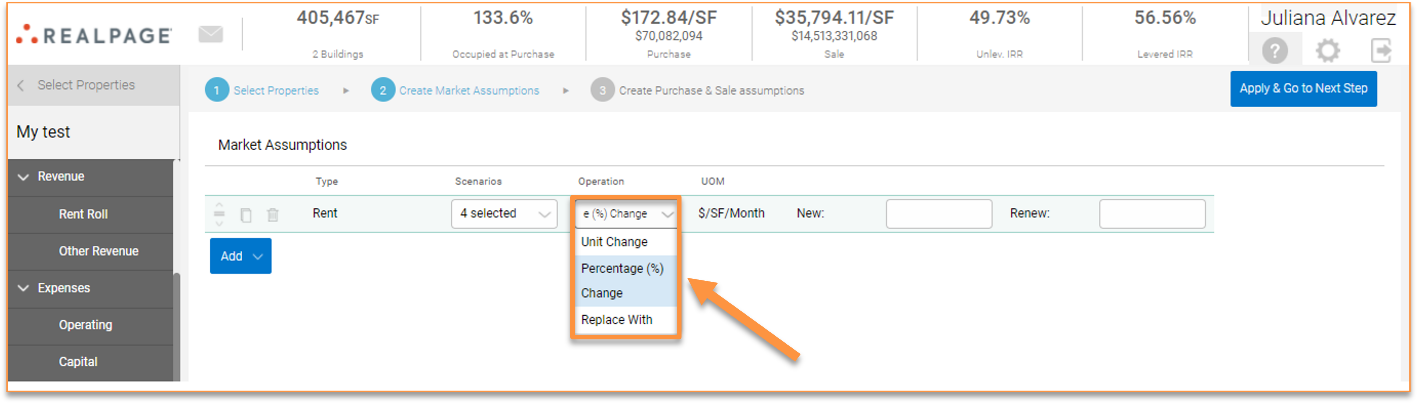
“Unit Change” will add or subtract the number of entered units to the selected scenarios. E.g., if you select a Tenant Improvement scenario that has a starting value of $5/SF and you enter $7, the final value will be $5+$7 = $12.
“Percentage (%) Change" will apply a specific percentage to a number. The formula used is Initial Value*(1+ XX%) = Final Value. E.g., If you have a Tenant Improvement scenario of $5/SF/Year and you apply a 10% percentage change, the final value will be $5*(1+10%) = $5.50.
"Replace With" will replace the previous entered value for that scenario. E.g., if you have a Tenant Improvement scenario starting at $5/SF and you replace with $7/SF, the final value will be changed to $7/SF.
Note: If multiple scenarios are selected with different Units of Measure, only the Percentage Change method can be used.
Once you select the operation to be applied, enter the value for the proposed change in the “New” and “Renew” fields. Then click “Apply & Go to next Step.”
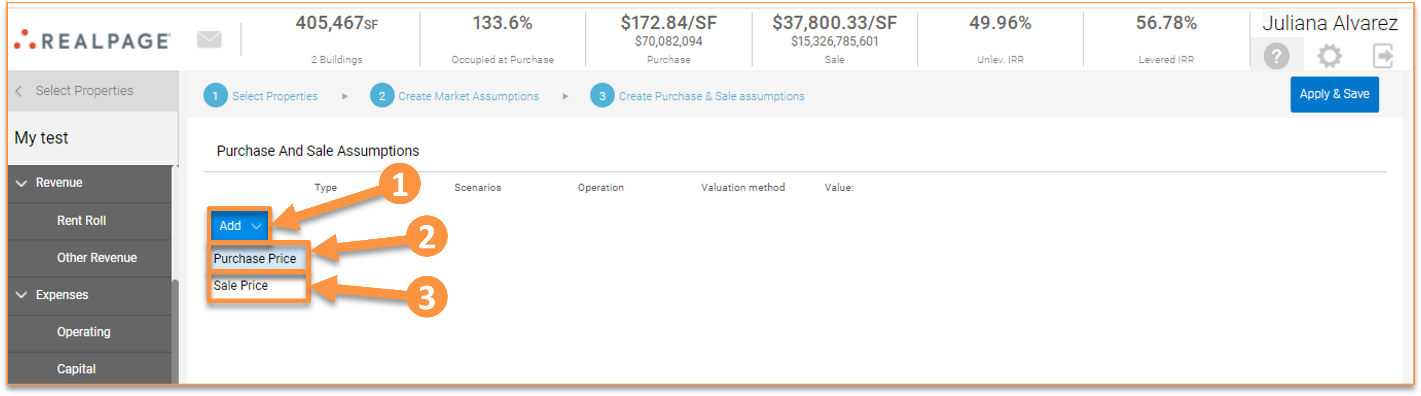
In the third step, you can create changes to Purchase & Sale assumptions. Click “Add” to make changes to “Purchase Price” and “Sale Price.”
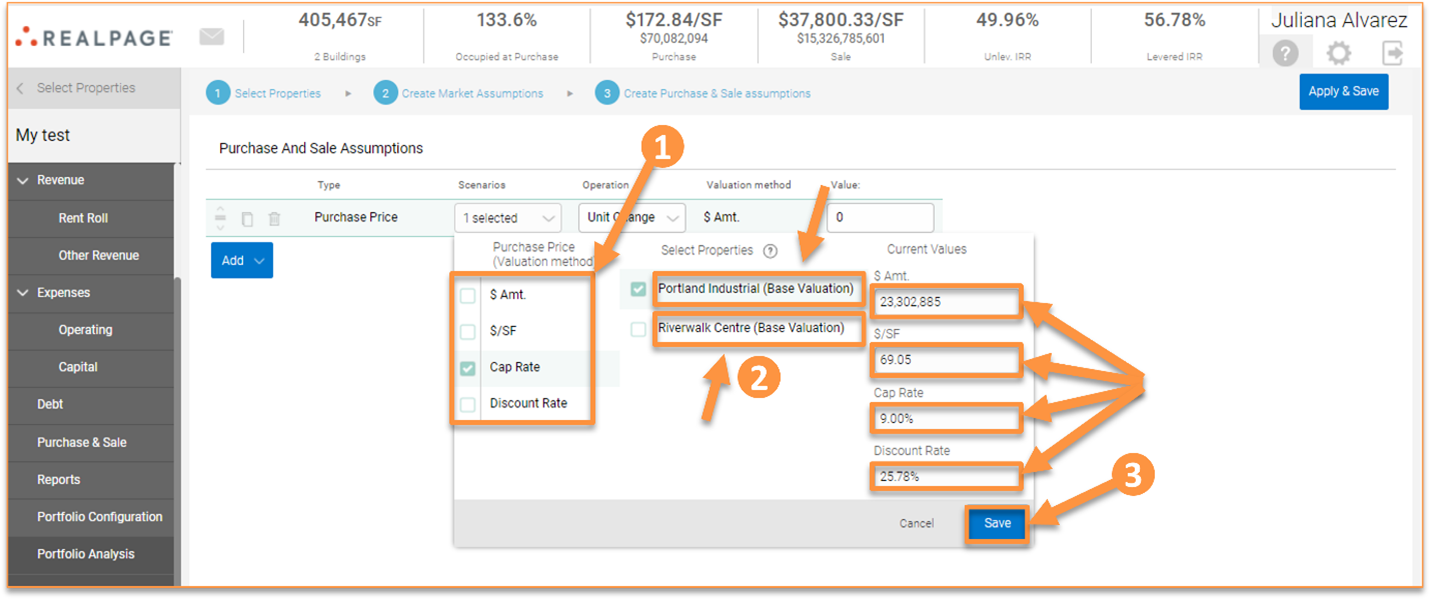
The “Scenarios” dropdown menu works the same as it does in step two. Make selections for the valuation method on the left and view the properties that correspond with the selected valuation method in the next column. Additionally, a third column will display on the far right that shows the current values for each property. To change the values being displayed for each property on the right, click on the name of the property in the “Select Properties” column in the middle.
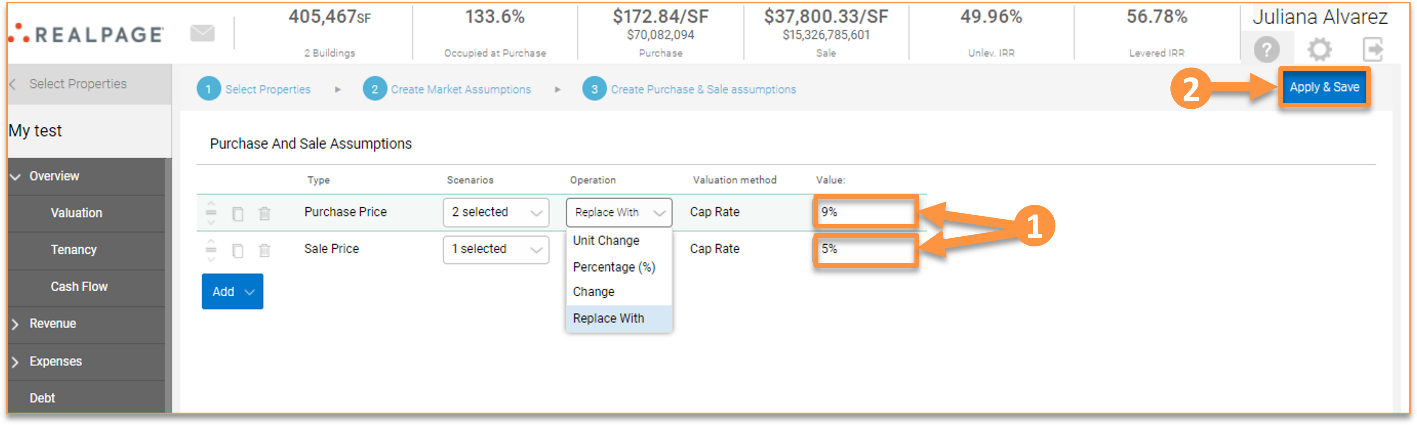
The “Valuation Method” column will show the scenario that was chosen. Next, the “Operation” column will allow you to select between “Unit Change”, “Percentage (%) Change” and “Replace With.”
“Unit Change” will add or subtract the number of entered units to the selected scenarios. E.g., if you select a Valuation Method of $50/SF and you enter $7, the final value will be $50+$7 = $57.
“Percentage (%) Change" will apply a specific percentage to a number. The formula used is Initial Value*(1+ XX%) = Final Value. E.g., If you have a Valuation Method of $50/SF and you apply a 10% percentage change, the final value will be $50*(1+10%) = $55.
"Replace With" will replace the previous entered value for that scenario. E.g., if you have a Valuation Method of $50/SF and you replace with $70/SF, the final value will be changed to $70/SF.
Note: If multiple scenarios are selected with different Units of Measure, only the Percentage Change method can be used.
Finally, enter the desired values in the “Value” column and click “Apply & Save.” All calculations will instantly be reflected in the portfolio cash flows and metrics.
Other helpful articles:
Deleting Properties from a Portfolio and Deleting Portfolios