Sending a Copy of a Property or Multiple Properties
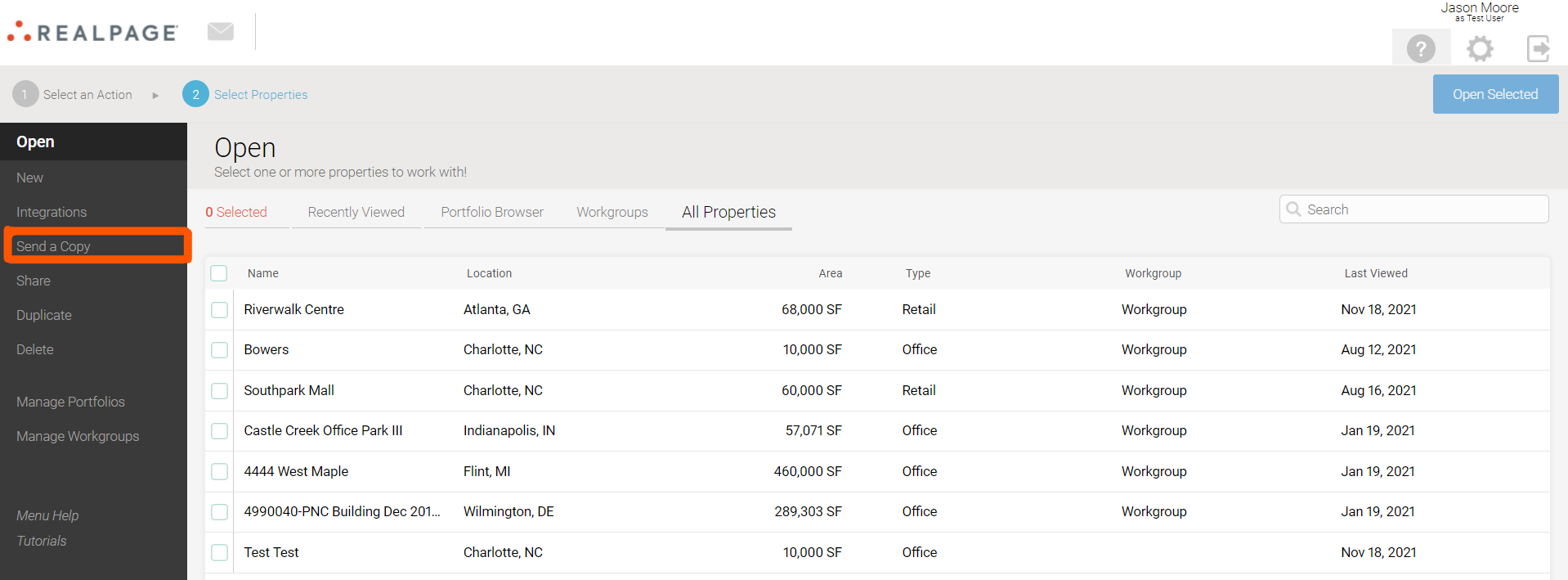
1. From the homepage, select Send a Copy:
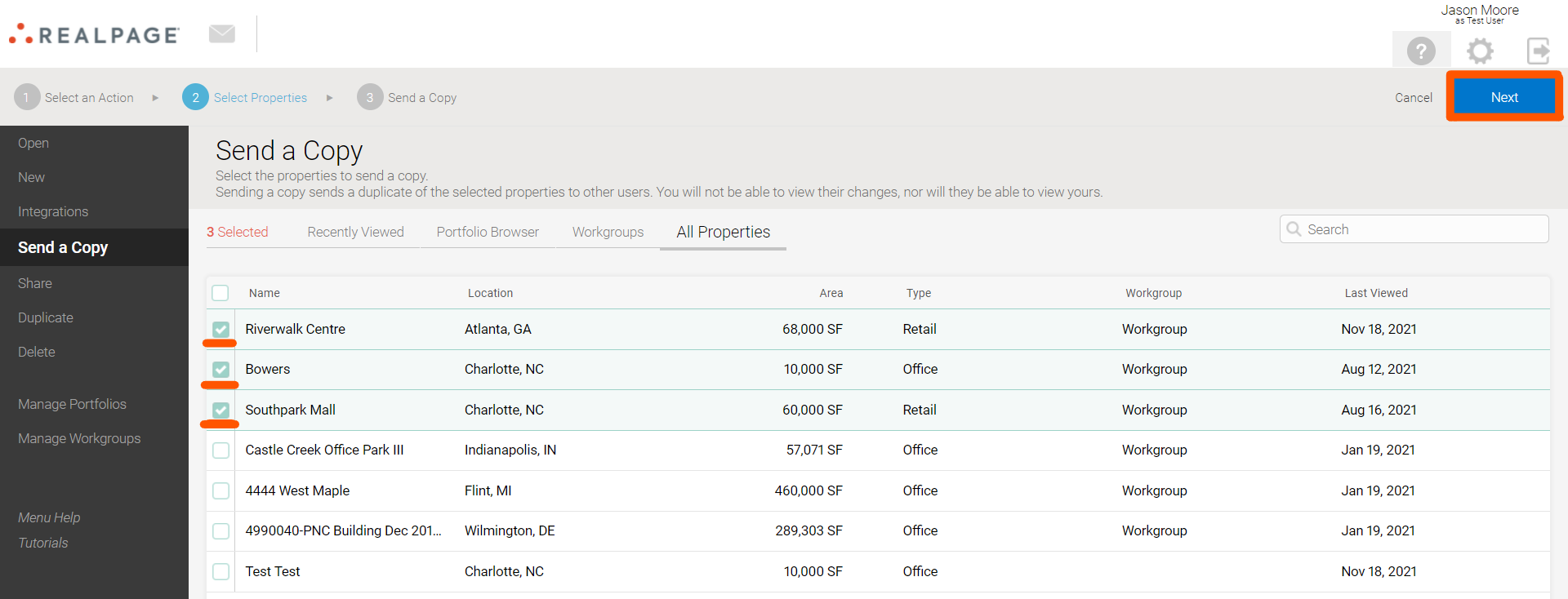
2. Select the property/properties you would like to send. Once you have made your selection(s), select Next:
3. Choose one of the following 3 options:
- Send a copy using an email address: Enter an email address, and the recipient will be notified that you have sent properties to them. Select Send a Copy once you have added your email address(es).
- Send a copy to people in a workgroup: Select a Workgroup. Each member will receive their own copy of the selected property/properties. Select Send a Copy once the workgroup has been chosen.
- Get a link to provide copies in a war room or by email: This link can be added to an email or a war room to provide copies for multiple users. Note that the property is copied at the time the link is used. Any changes you make between then and when the link is selected will be reflected in the recipient’s copy.
Read Only Access (Optional): Note the ability to select a settings gearwheel next to any of the properties that you have selected to copy:
Selecting the Read-only Access checkbox allows you to create the only sections of the platform that the intended users will have access to. Once everything is configured, select Save and continue with one of the copy options mentioned above.