Sharing Properties
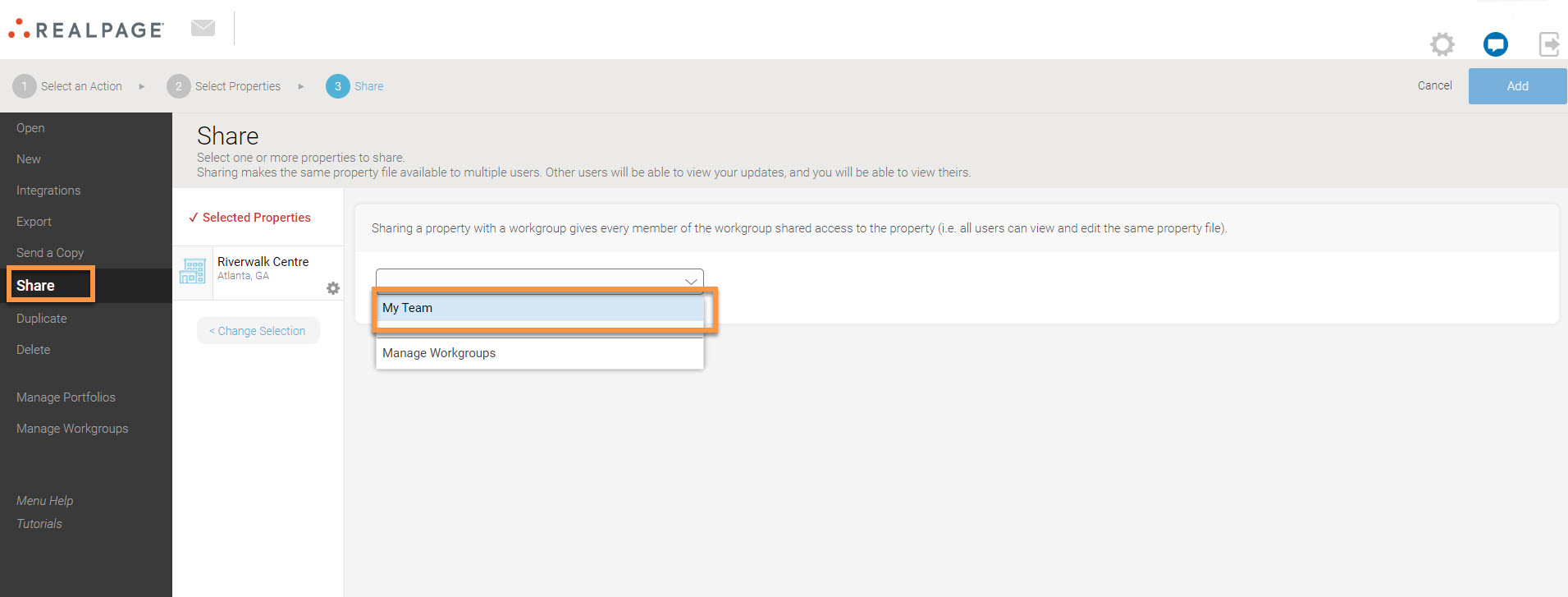
Properties can only be shared with Workgroups. To share a property, select Share from the action panel on the home screen and select the property you wish to share. Next, select the workgroup that you wish to share the property with from the drop-down and click Add.
Pro Tips
1. Only the properties for which the user holds the admin rights can be shared with a workgroup.
All members of a workgroup can share properties with the workgroup.
2. Each property can only be part of one workgroup at a time. In order to join a new workgroup, the selected properties will be removed from their current Workgroups.
3. A property can be shared with Read-Only access by clicking the settings gear wheel next to the property name in the Share menu. This means the admin of the property will be the only member with permission to make changes or edits to the property. The rest of the workgroup members can access the property in read-only view.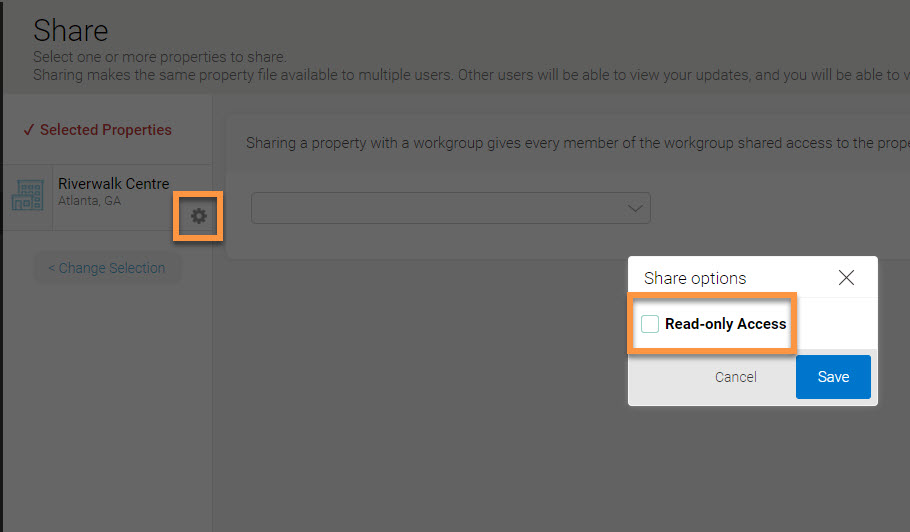
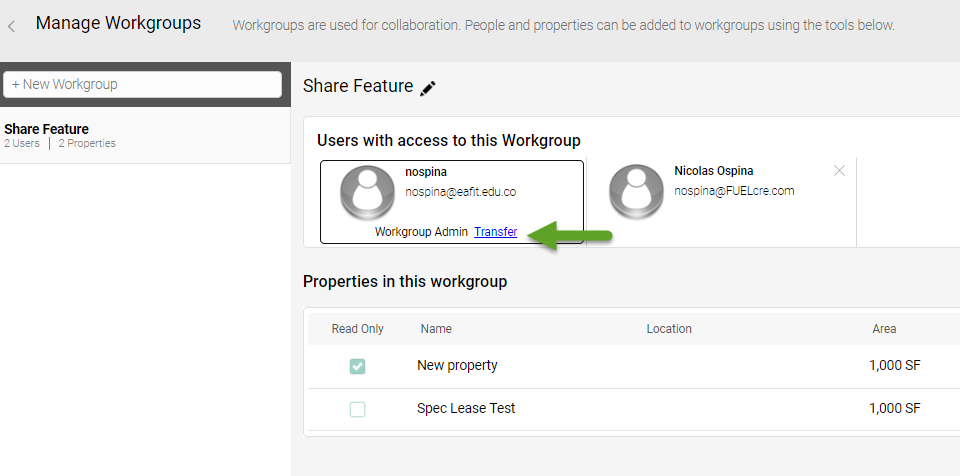
4. All members of the workgroup will have the same permissions for a specific property (except the property admin). This means that for any given property, there can’t be a set of group members that have read-only access and another set that has editing permissions.
5. Each of the properties in a workgroup can have a different permissions setting. This means that in the same workgroup, one property can have read-only access, while a different property can be edited by all members.
6. Even if a workgroup admin rights are transferred to another member, each property’s editing permissions will remain.