Adding an Asset
Start by selecting ‘New’ from the left-hand actions menu – The following screen will walk through high-level data for entering your new property.
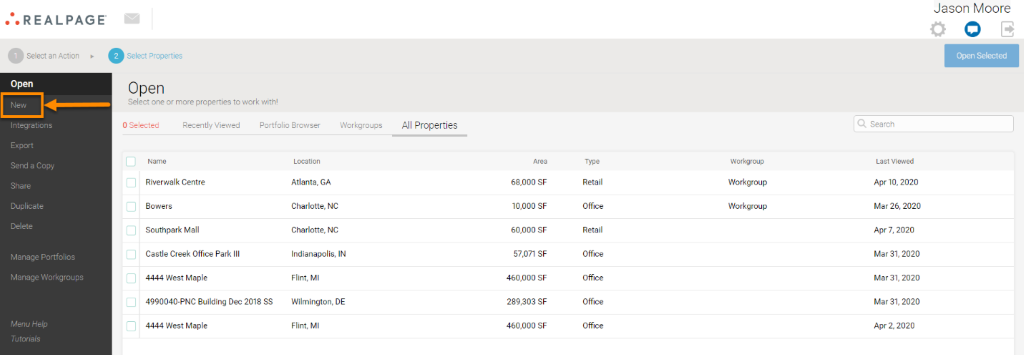
Enter Basic Info into the fields provided, followed by ‘Address’ and ‘Other’ fields, if necessary.
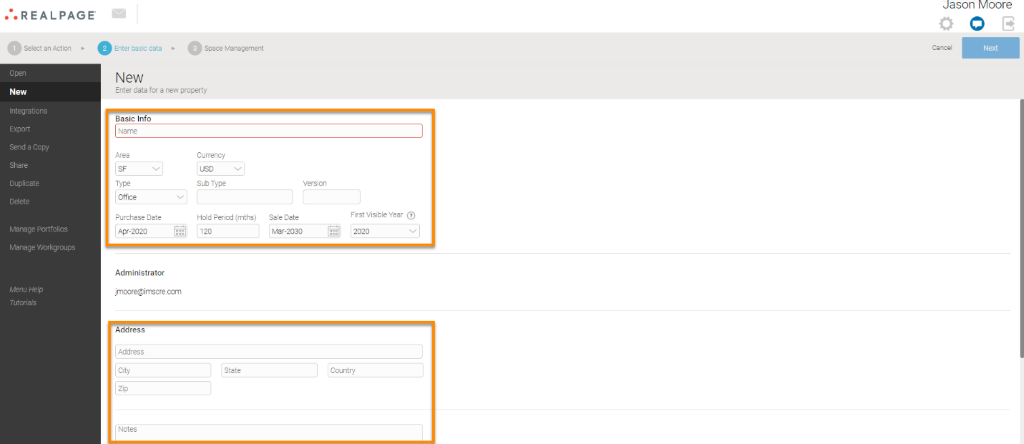
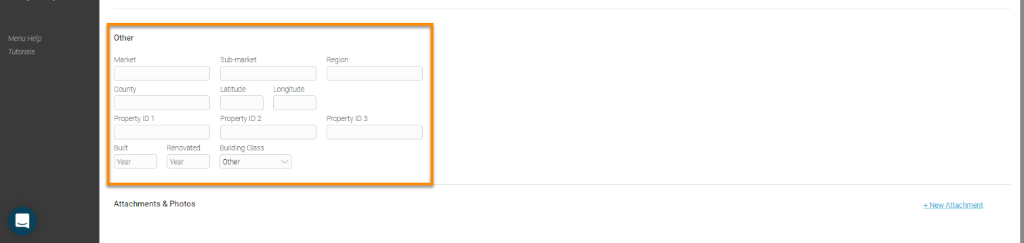
Property Details
Enter information for the asset you are creating.“Name” is the only required field needed to proceed.
FUEL is not constrained to a specific time period. Every model in FUEL starts at the year 2000 and continues indefinitely. This gives you the ability to easily consolidate models from different time periods and to quickly value the property at any point in time.
Pro Tips:
1. Purchase Date is the anticipated closing date
-It is roughly equivalent to the analysis start date in ARGUS DCF
2. First Visible Year will default to the year of purchase
-It is roughly equivalent to the reporting date in ARGUS DCF
-This setting determines what years are visible in the FUEL. For example, when 2016 is selected, inputs for years prior to 2016 will be hidden. This setting can be changed later to show prior years if needed
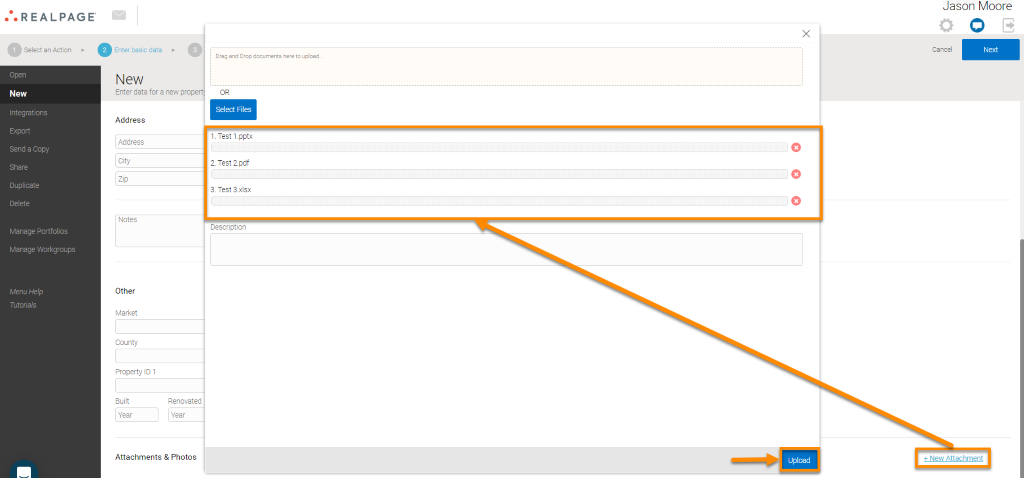
Add any attachments and/or photos pertaining to the new asset by clicking the 'Add Attachment' link in the bottom right. Select ‘Upload’ once you have selected the files you wish to associate to the asset. Once complete, click 'Next.' Note: Multiple files can be dragged onto the page or selected from an internal folder.
Space Management
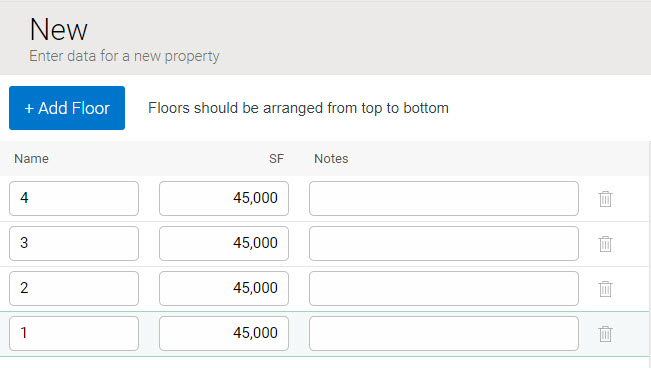
This is where the total floor areas are modeled. Input the current BOMA or REBNY measurements for the property. Measurements are used throughout the program to:
1. Automatically reconcile the rent roll
2. Automatically track occupancy on both the BOMA/REBNY and as-leased basis
3. Track space encumbrances in the building and ensure you don’t lease-up encumbered space
4. Facilitate reporting by location in the building stack (i.e., view how low-rise space performs versus mid-rise in office, or compare how industrial is priced based on the ratio of warehouse/manufacturing/office space, etc.)
5. Drive the interactive stacking plan
Below is an example office building with four 45K SF floors
Additional Information:
-Space management for retail and industrial properties can be split by usage
Retail: anchor, sub-anchor, in-line, outparcel, etc.
Industrial: warehouse, mezzanine, office, etc.