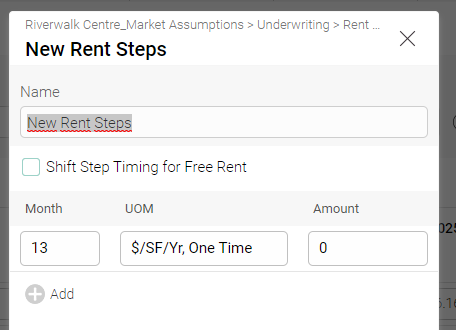
How to Enter Rent Steps
Adding a Rent Step to a Lease
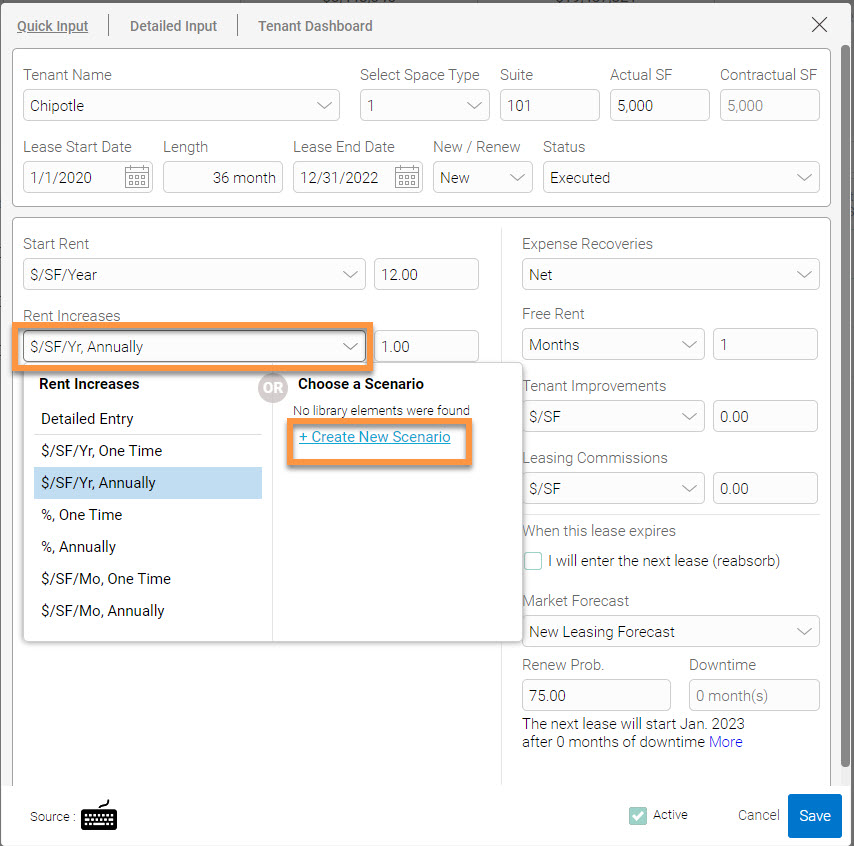
In order to input rent increases on a monthly basis for a contractual lease, you can open the lease in either the detailed input view or quick input view. On the quick input view, you can click on the rent increases drop-down field and select an existing rent step scenario or select one from the default options on the left. You can also choose to create a new scenario:
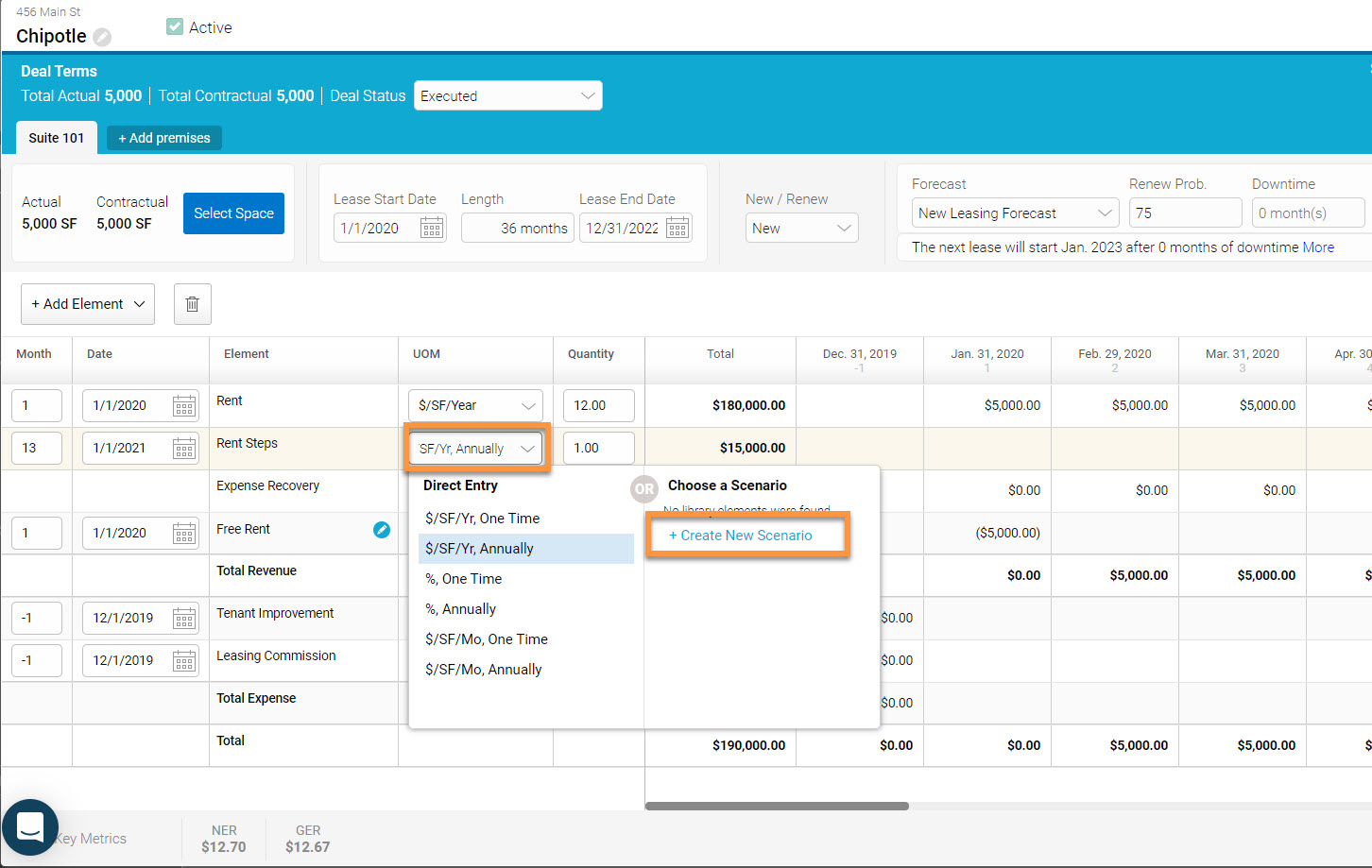
On the detailed input, the same process applies:
Adding Rent Increases to a Leasing Forecast
To enter rent increases in the market leasing assumptions, please follow these steps:
1. Click on the market assumptions tab in the left-hand side. Then double click on the leasing forecast
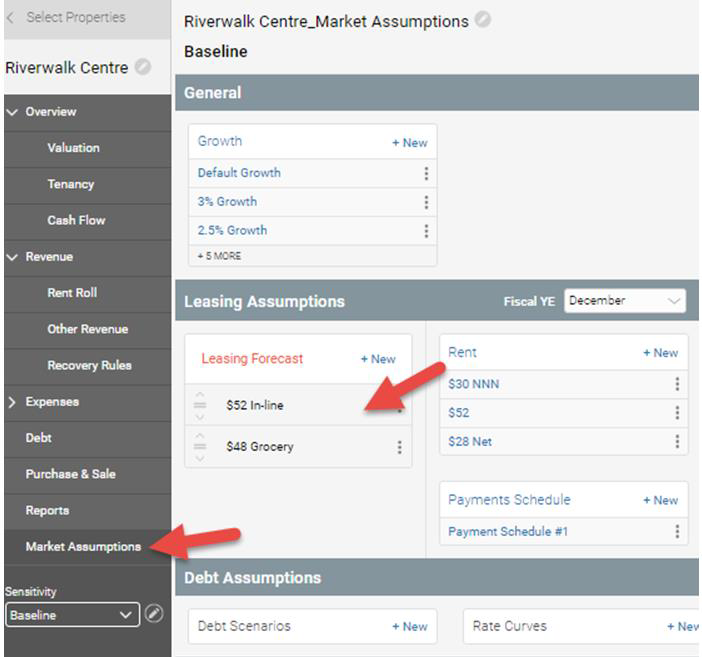
2. Click on the pencil icon next to the rent:

3. At the top you will see the rent steps drop-down where you can choose a rent step scenario or create a new one:

Creating a New Rent Step Scenario
Growth rate: When you model the rent of a Leasing Forecast, the growth rates will tell you what the starting rent will be when the forecast begins. However, if you haven't set up any Rent Steps, the rent will be the same throughout the forecast period.
The Rent Steps field determines the rent increases once a forecast lease begins. This field offers 2 different options:
1. Quick: This option allows the user to quickly enter a rent step scenario by selecting the value, the method and the periodicity of the rent step.

2. Detailed: This option offers more flexibility by allowing the user to select the specific months for which the rent steps should be applied.