Rent Roll: Import from Excel
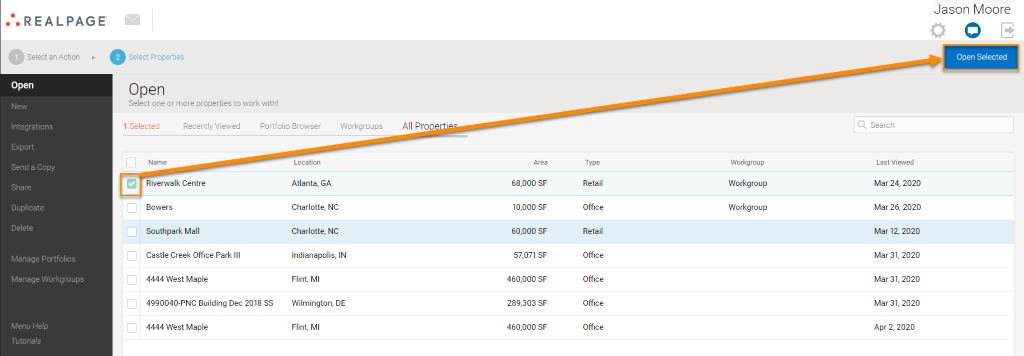
From the Open tab on the left-hand navigational column select the properties you wish to import a rent roll for. Select ‘Open Selected.’
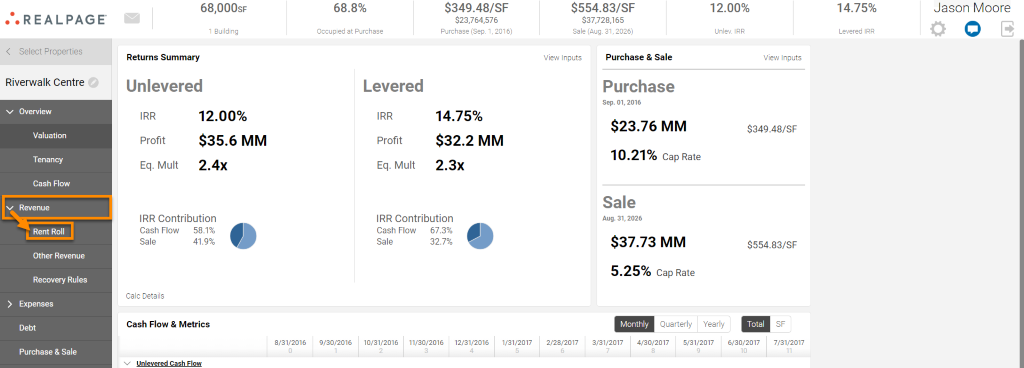
Select the ‘Revenue’ tab to expand the list of options in that menu. Select ‘Rent Roll.’
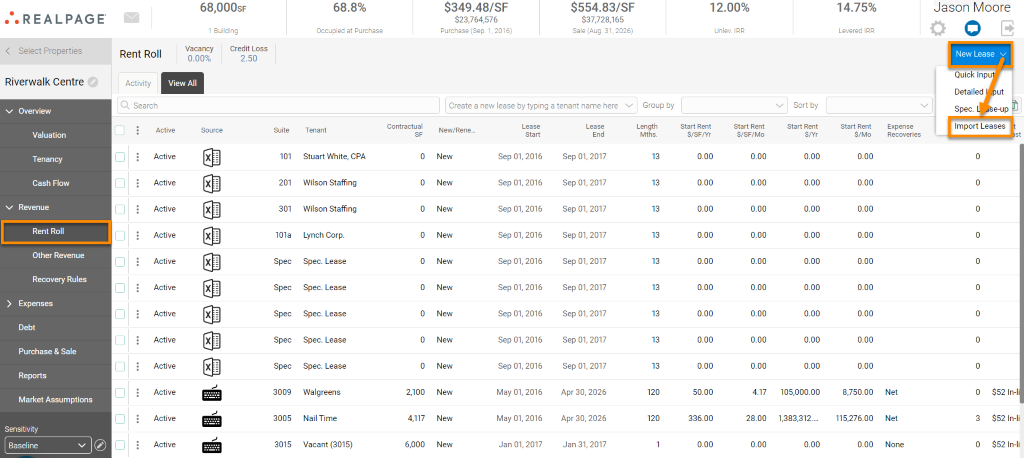
Select ‘New Lease,’ and lastly select ‘Import Leases’
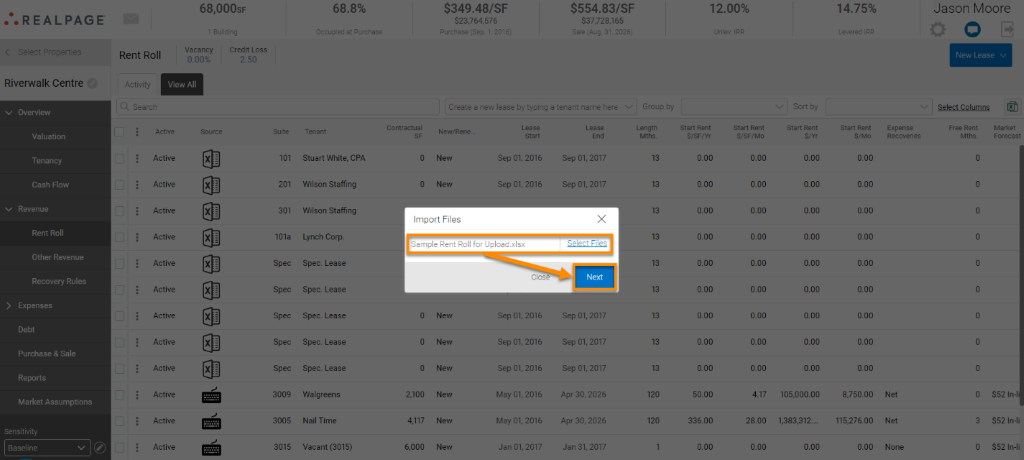
Click the ‘Select Files’ link to search your computer for the files you wish to import or drag and drop to upload a .xlsx Rent Roll file into the platform. Select ‘Next’ to import the files.
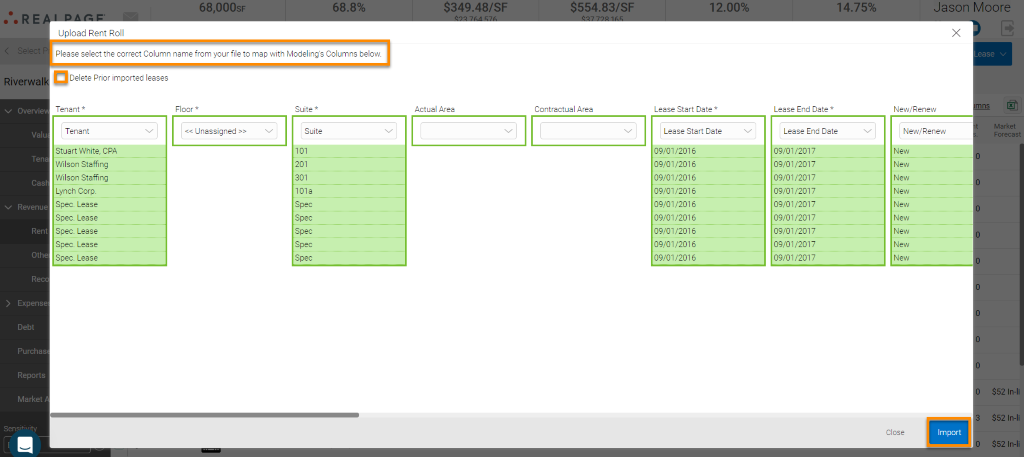
Select the correct column name from your file to map with FUEL's columns below, or rearrange the columns for customized mapping and re-upload the file. When you are ready, click "Import."
Note: You have the option to check ‘Delete Prior imported leases’ if you have loaded previous leases and wish to start from scratch.
TIP: Make sure your file has a file format similar to the attached Commercial and Multifamily Sample Rent Roll files below. If you are still having difficulty importing your file, try changing the column headers and inputting your data into the correct property-type sample file.