Entering a Vacancy Allowance
The vacancy adjustment (or allowance) field is a user-entered percentage that accounts for the expected vacancy of the property. This percentage is only applied if the property's actual vacancy is lower than the allowance percentage entered by the user.
For example, if the user enters a 5% vacancy allowance, and the current vacancy for the property is 2%, then a 3% vacancy allowance will be applied (5%-2%).
You can find the vacancy allowance field located in the upper left corner of the rent roll section. After selecting, you'll have the option to apply the vacancy allowance to the Gross Rental Income, to your other income, or to both.
The vacancy allowance is only applied considering the vacancy of the forecast leases. If you want it to include executed leases, select the ‘Override User entered leases’ option located at the bottom.
Note the option for Direct Entry or + New Scenario:
If + New Scenario is chosen, you may choose between Simple or Annual input fields, enter the rate percentage, and choose what the vacancy will be applied to. Again, if you want it to include executed leases, select the ‘Override User entered leases’ option located at the bottom.
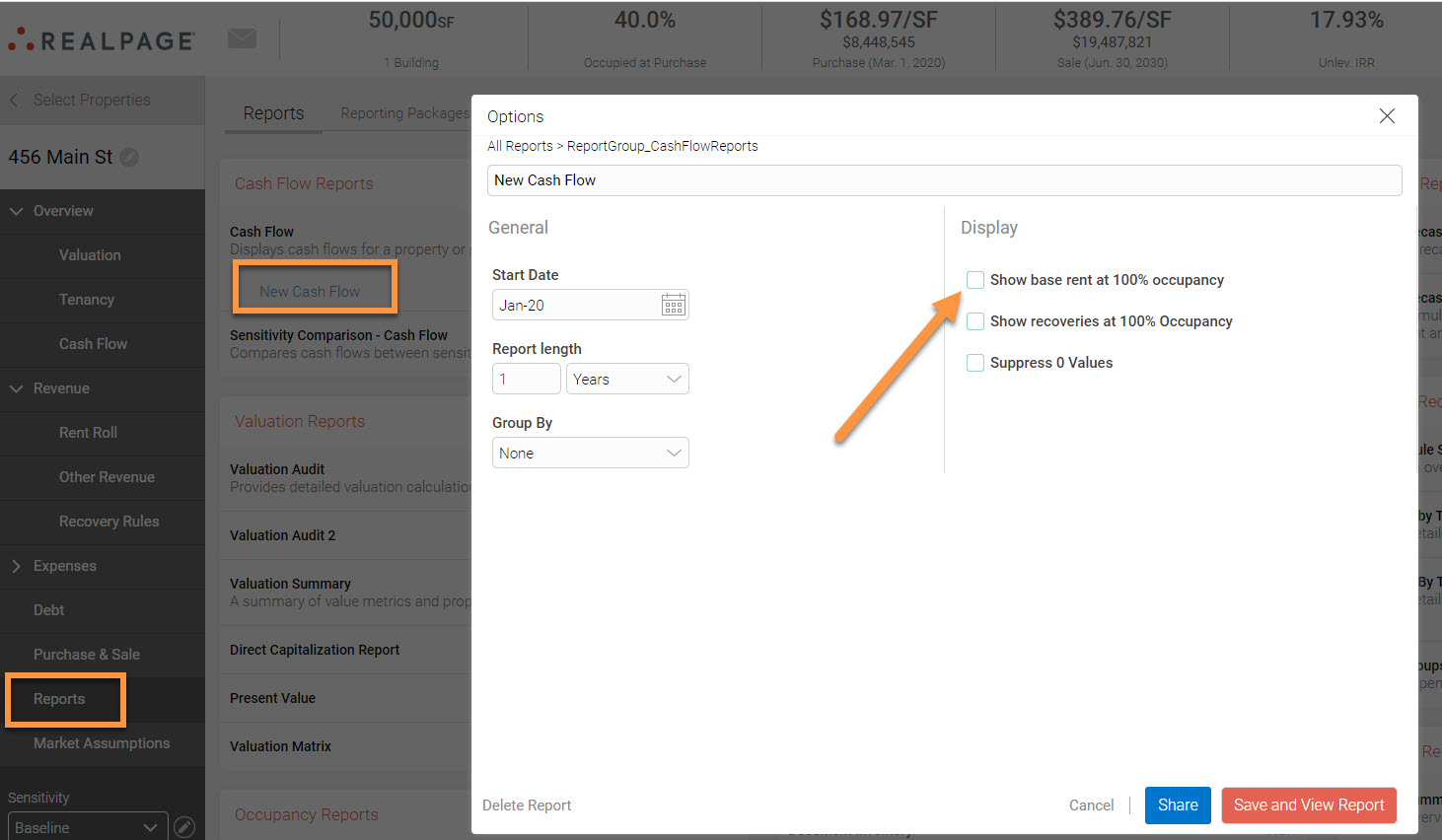
The vacancy loss is a metric that shows up in the cash flow report only when the "Show base rent at 100%" occupancy option is selected from the report's options. This metric shows the loss due to downtime between lease renewals. If the user doesn’t have the ‘Show base rent at 100% occupancy’ option selected, this metric won't show up.